Get yourself in a well-lit space with a clean background.
Welcome to Computershare’s Investor Centre App user guide. We have designed our shareholder experience to provide you with easy access to your registered portfolio including holding information and bank details.
This user guide provides step-by-step instructions on how individual investors can register to become a member of Computershare’s Investor Centre App. For investors planning to register for accounts with national ID documents without Latin characters, ‘joint’ and ‘corporate’ holders, please make an appointment to visit our Investor Services Counter here and check out the steps and documentation required.
All screenshots are for illustration purposes only. The actual design of the App interfaces are subject to enhancement.
The whole process should take less than 10 minutes. Look for  sign in this guide for useful tips.
Last updated August 2026
1. Prepare

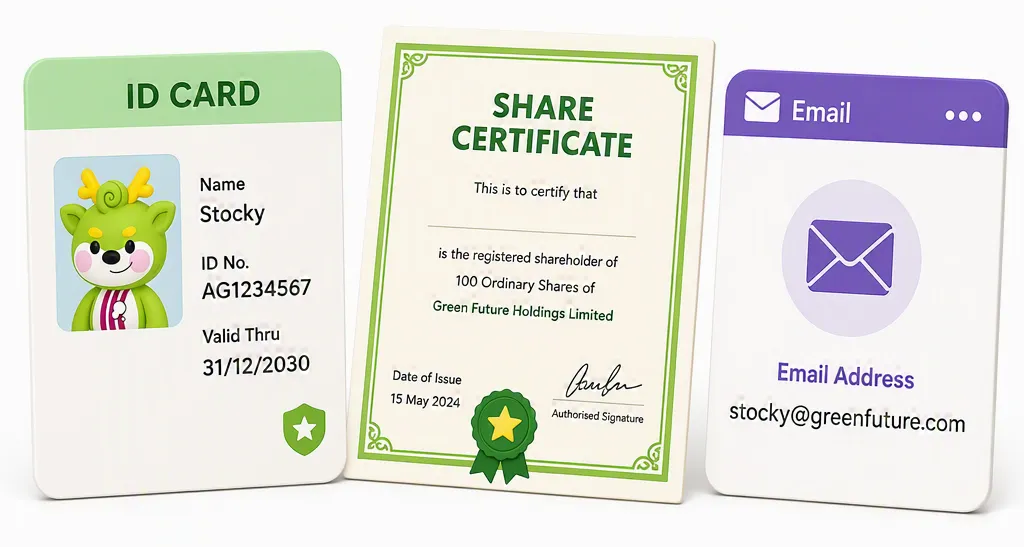
Get the following items ready:
 Hong Kong Identity Card for citizens; passport with English names for non-citizens
- Your share certificates
- Access to an email inbox owned by you
- Look for Clearing and Branch code of your bank from your bank statements

Scan this QR code to download the Computershare Investor Centre Hong Kong App from App Store or Google Play on your mobile device.
2. Create a USI profile
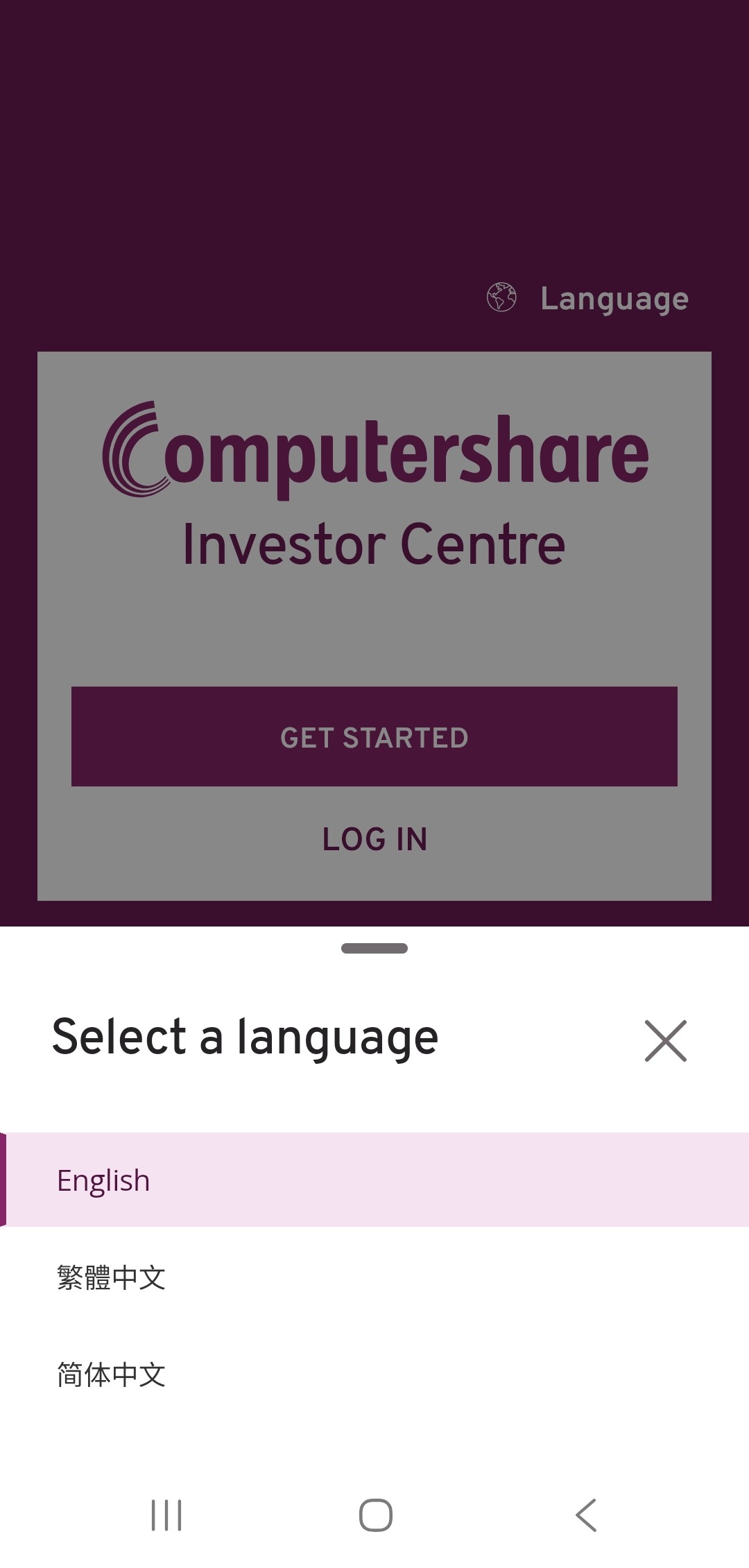
Choose a language that you want to proceed with and click ‘GET STARTED’.
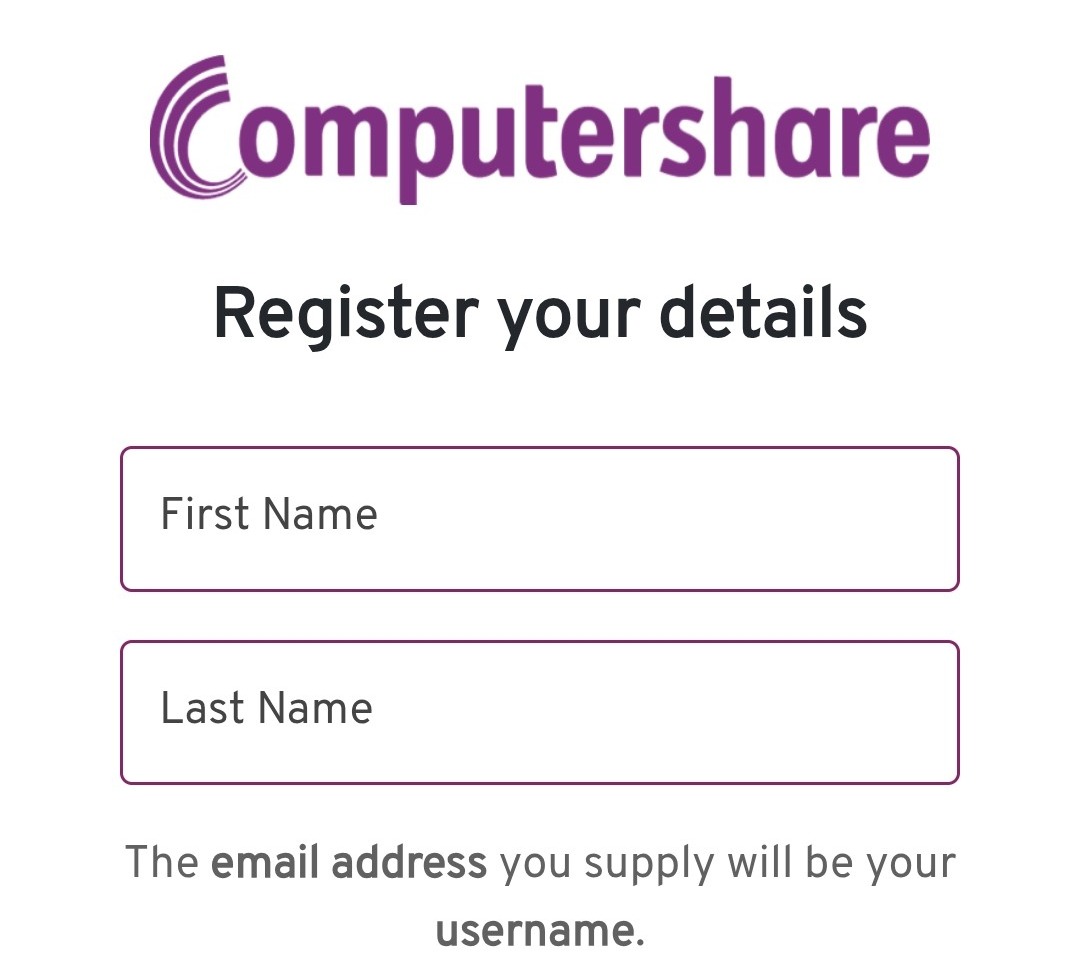
Fill out your name according to the Latin characters put on your ID document.
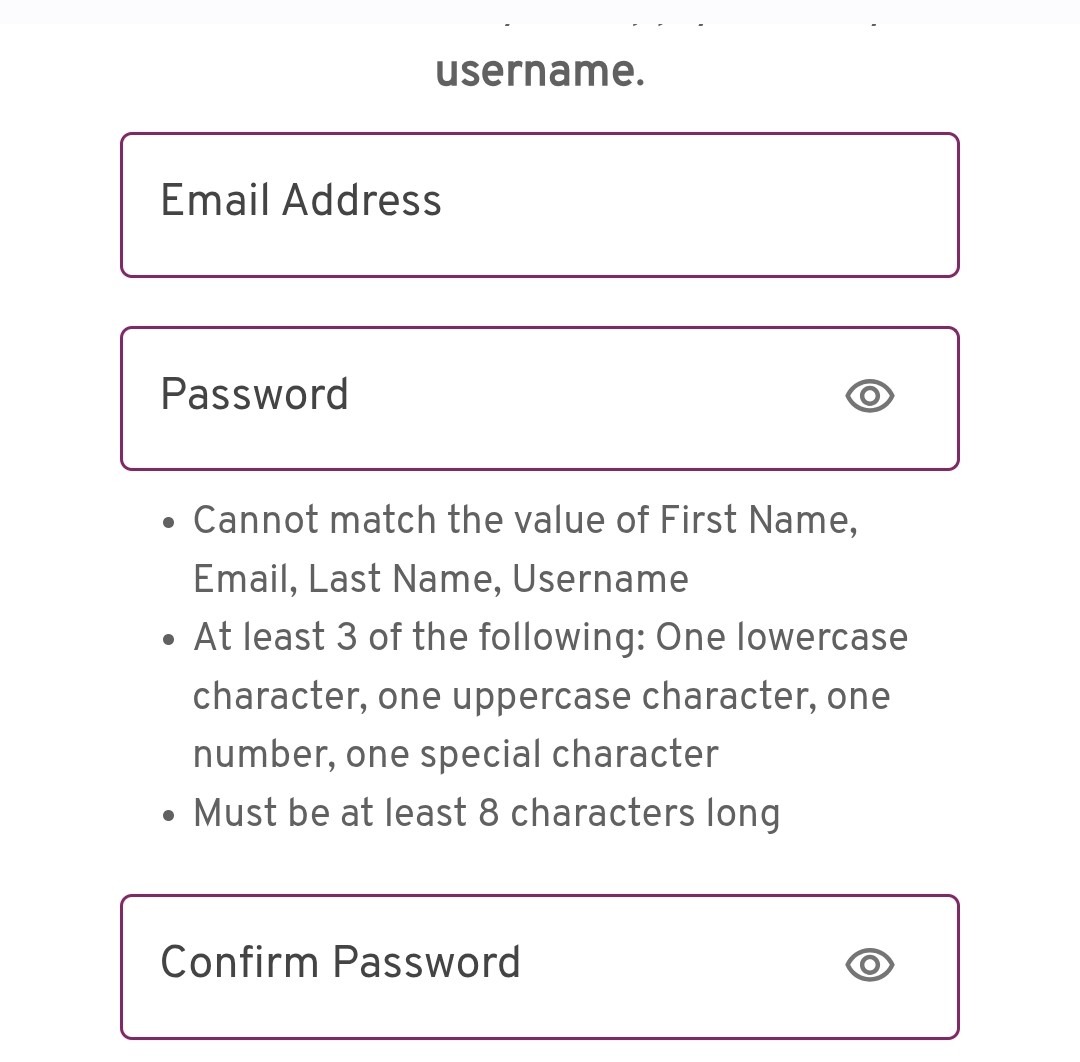
Provide an email and create a password.
This email will be used as your login name going forward and cannot be modified.
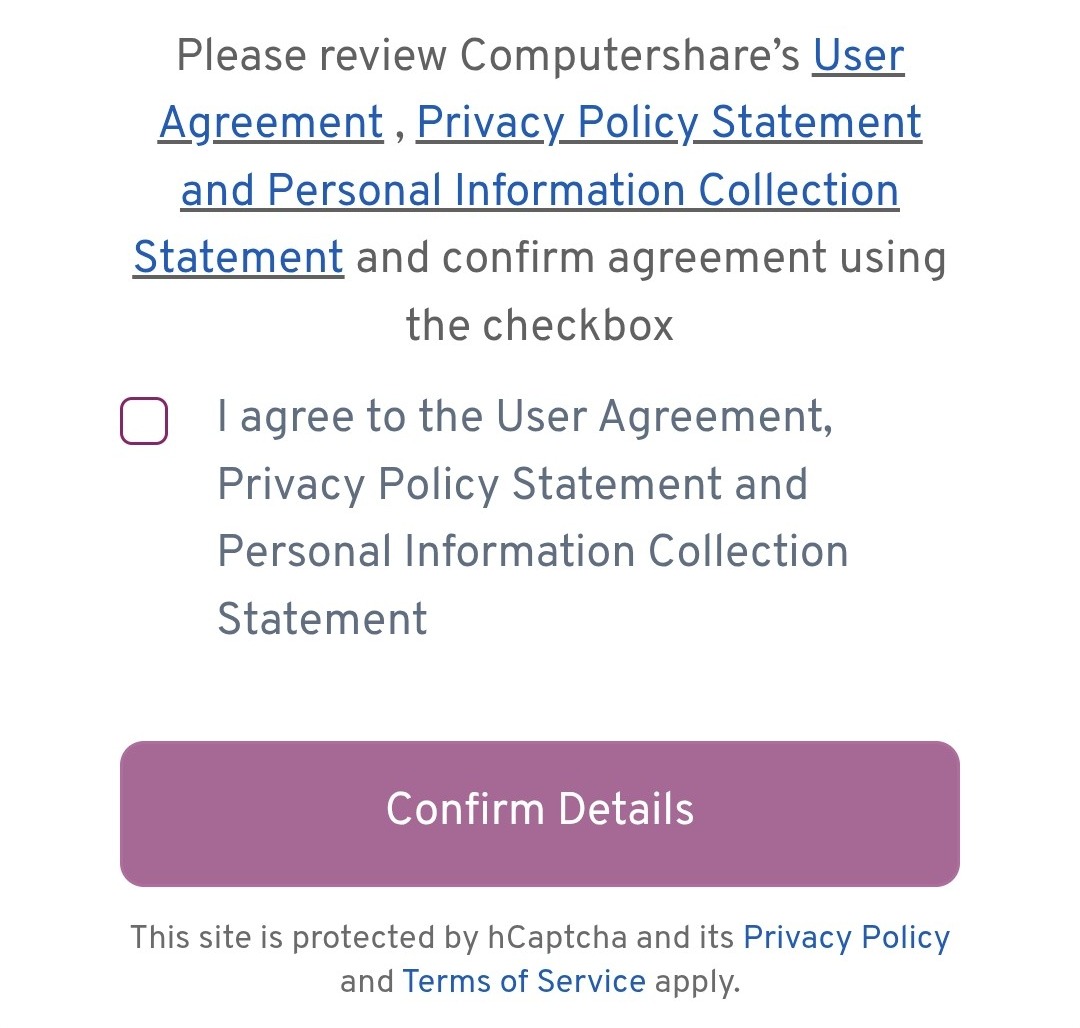
Click ‘Confirm details’ after read the relevant agreement and statements carefully.
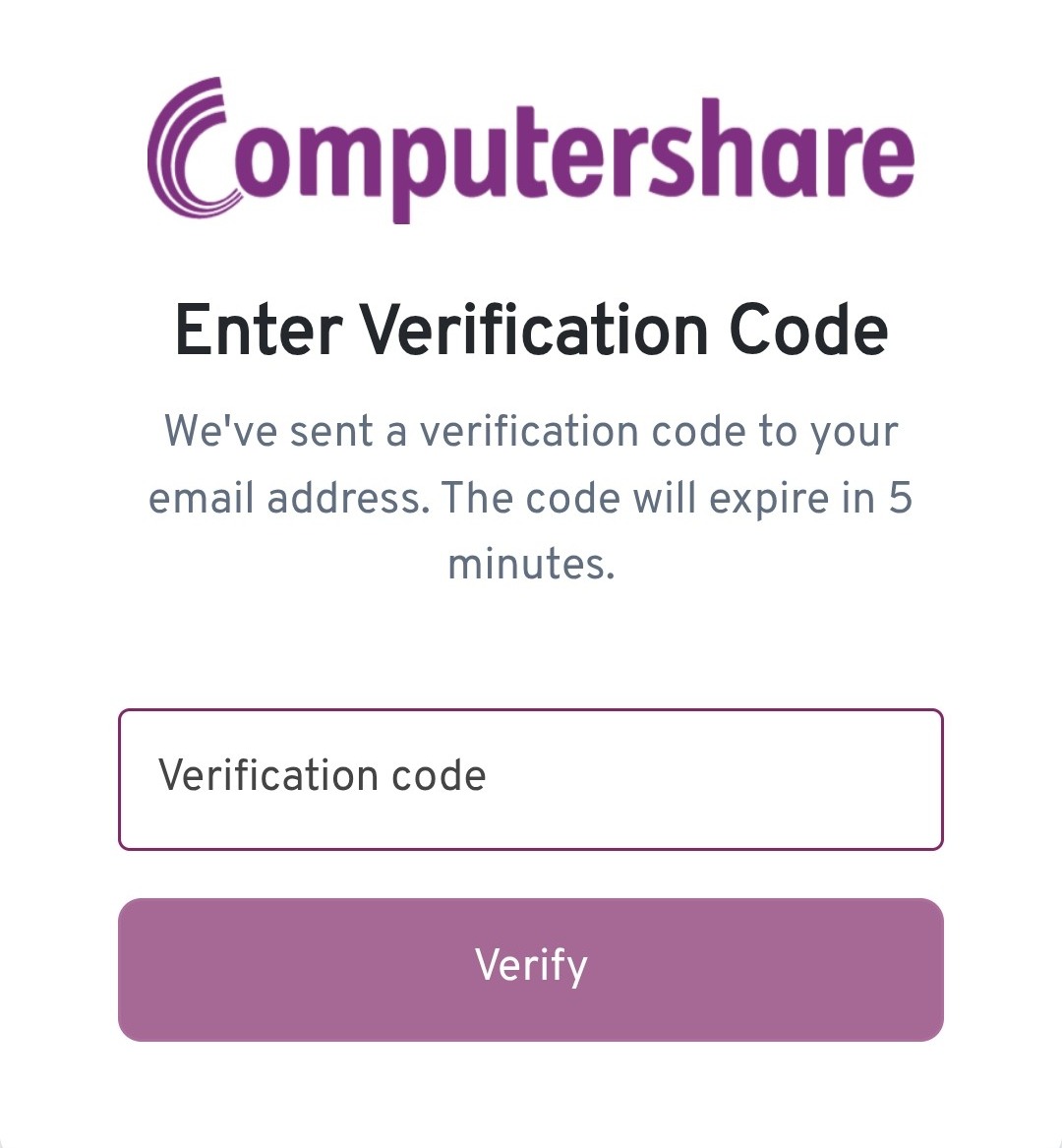
Provide the verification code in the confirmation email sent to your mailbox and click ‘Verify’.
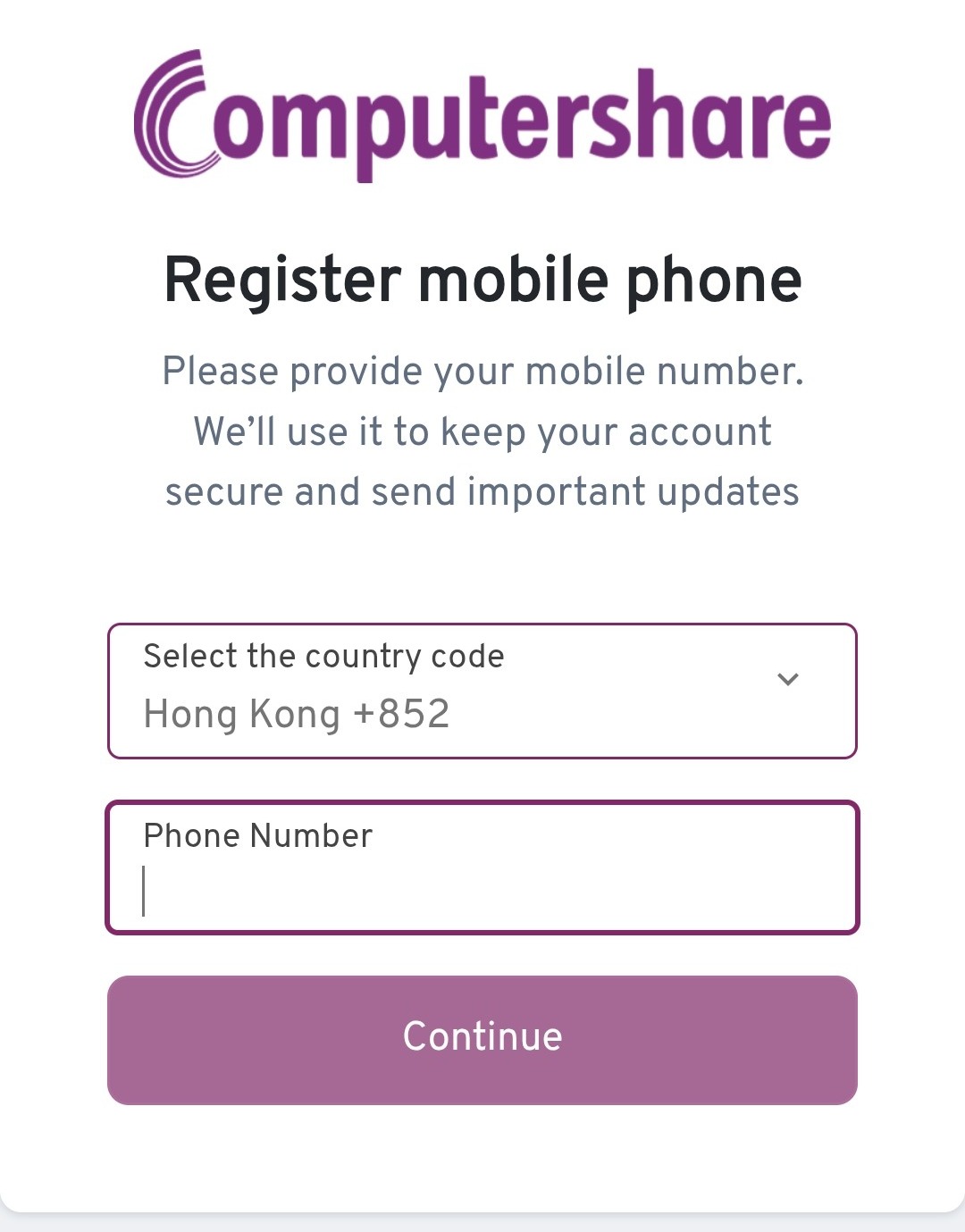
Provide your mobile number.
If you are not using a Hong Kong mobile number, verification arrangement may vary.
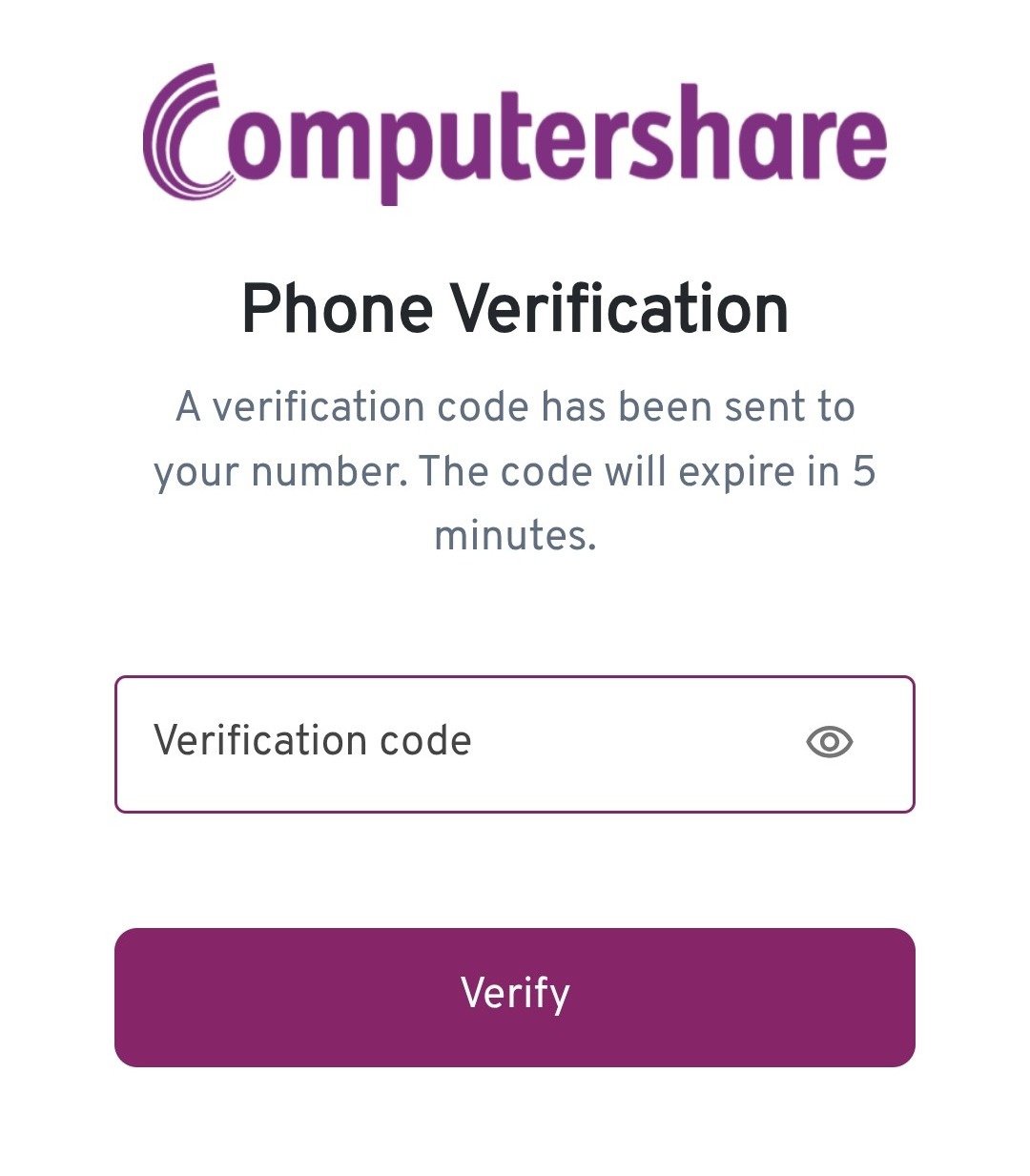
Provide the verification code sent to your phone number.
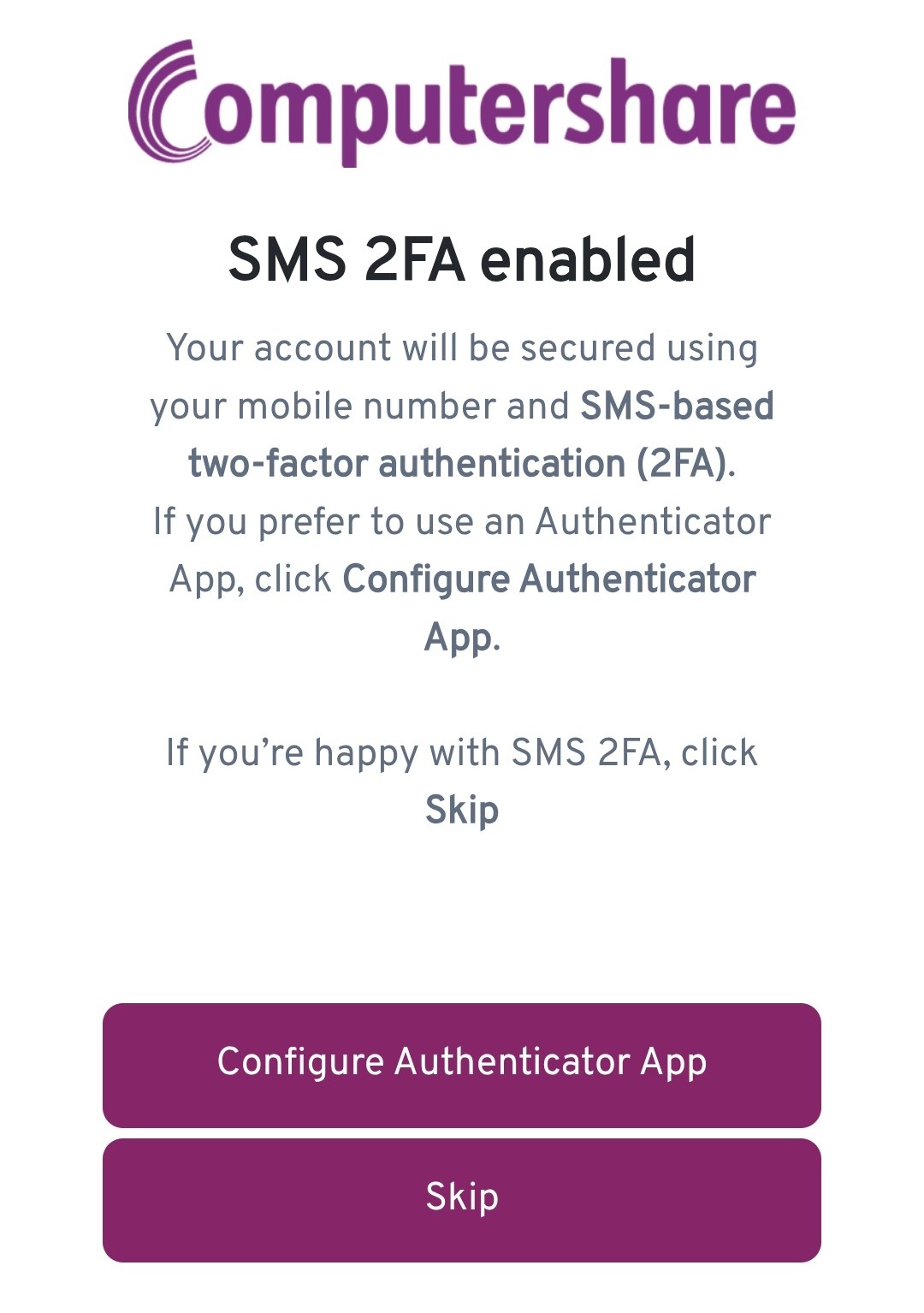
You can choose to add extra security by enabling the use of an authenticator app.
If you choose skipping to use an authenticator app, you will still receive SMS OTPs to mobile number provided.
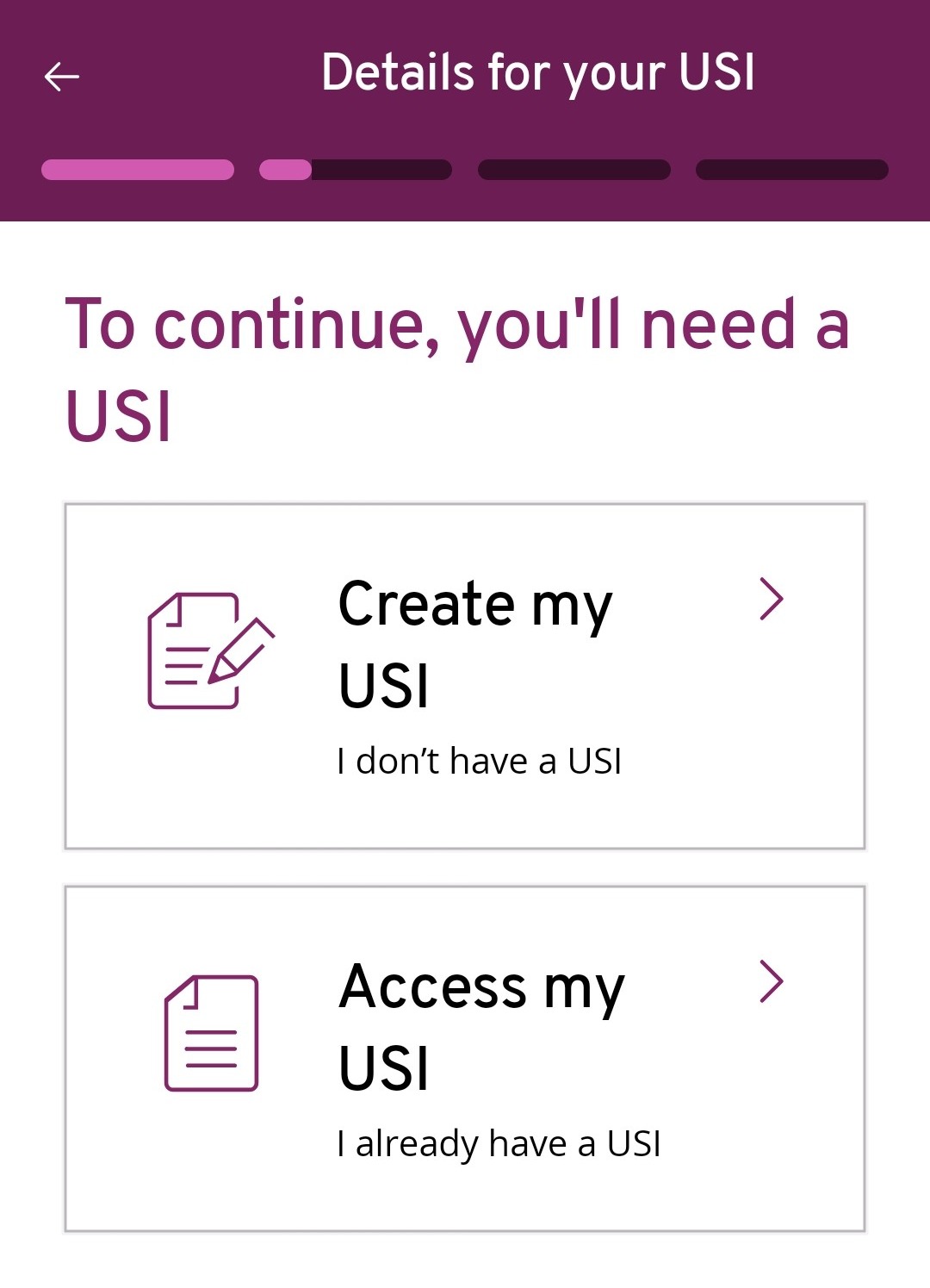
Choose ‘Create my USI’ if you haven’t got a USI profile.
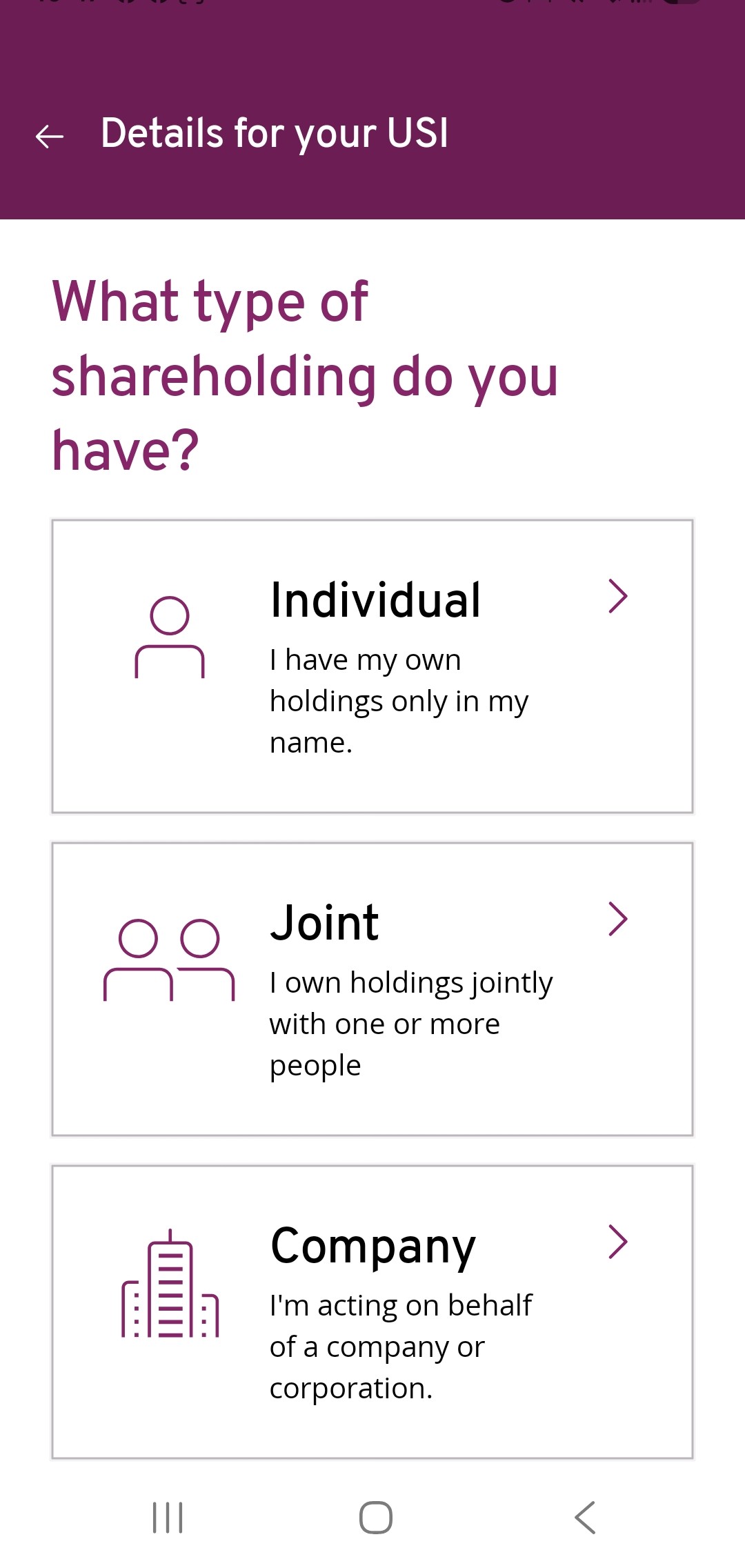
Choose ‘Individual’ if you are setting up a USI profile in your own name.
For ‘Joint’ and ‘Corporate’, please make a booking with us for an offline USI set up arrangement.
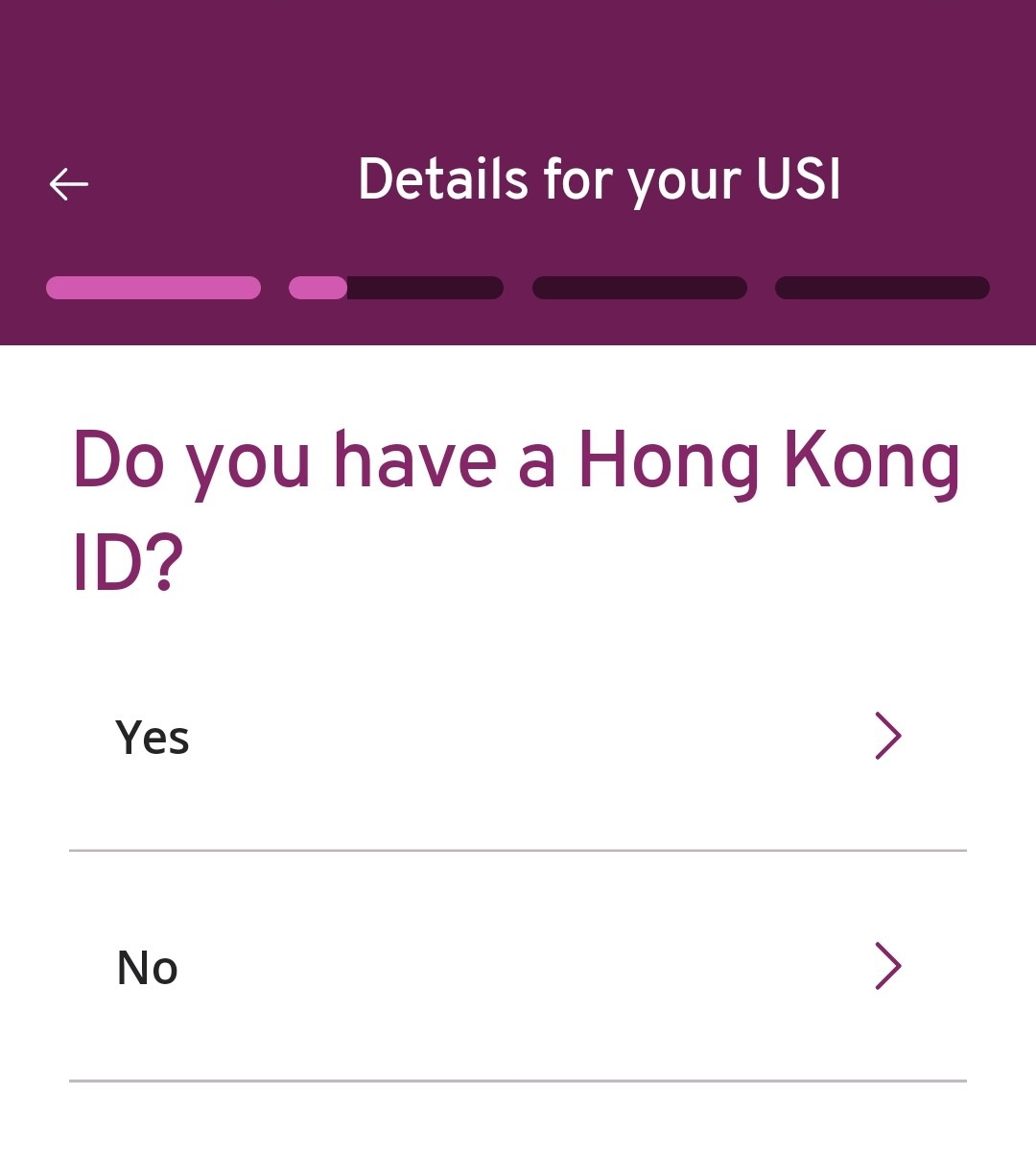
Pick ‘Yes’ if you have a Hong Kong ID card, then click ‘Yes’.
If you don’t have a Hong Kong ID, the fields required in the following screens will vary.
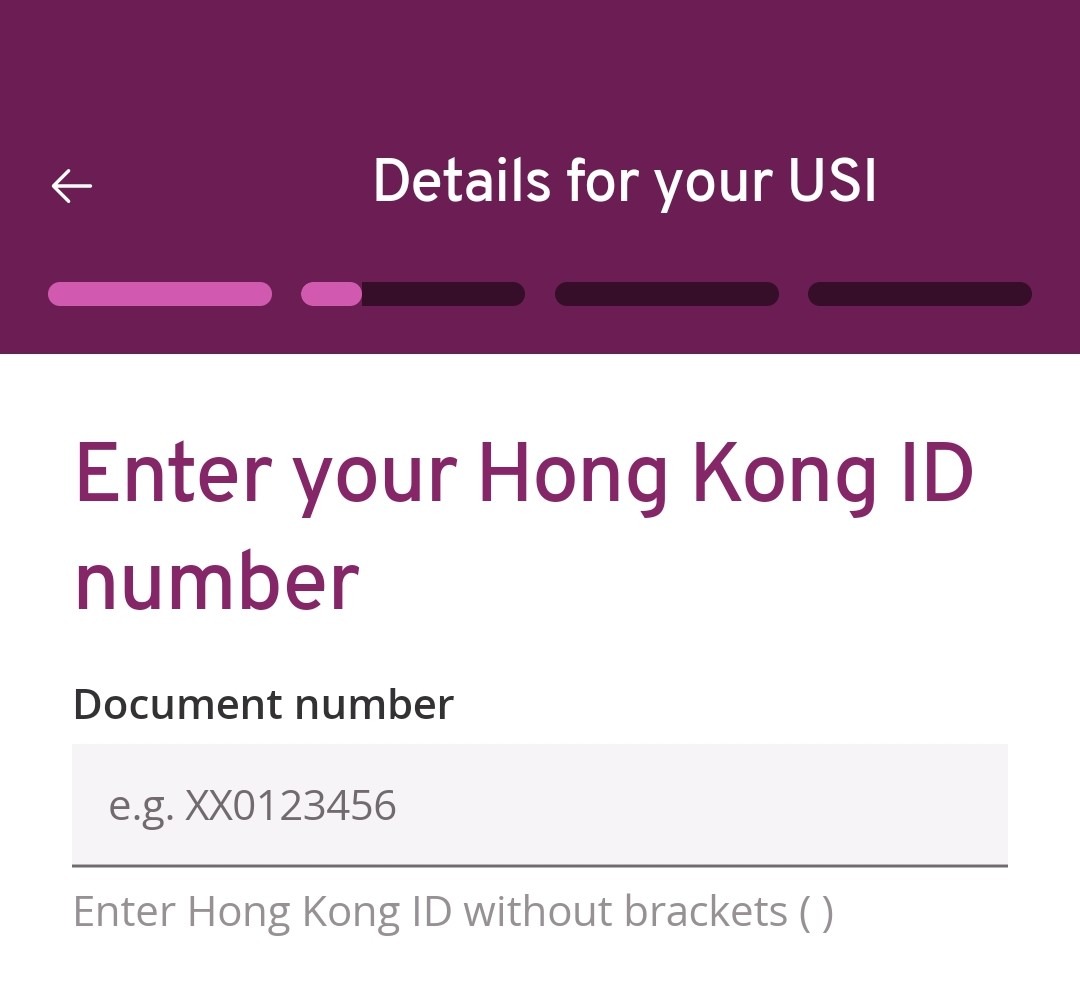
Enter your Hong Kong ID number, then click ‘Next’.
If your ID number is XX012345(6), you should put XX0123456.
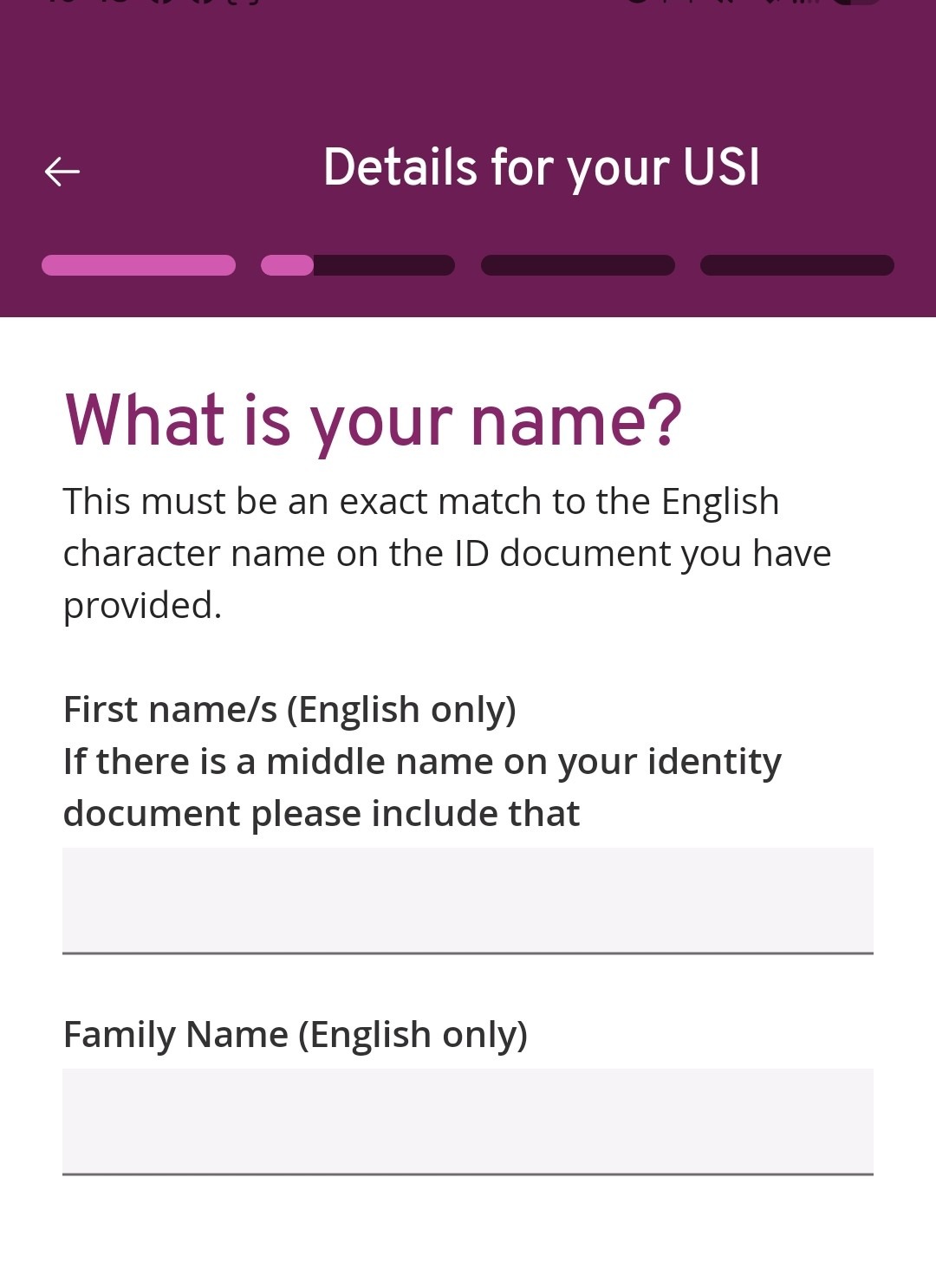
Enter your surname and given name, then click ‘Next’.
For example, ‘Chan Tai Man’ should put ‘Chan’ in the Family Name field, ‘Tai Man’ in the First Name field.

Provide an address for your USI profile in English.
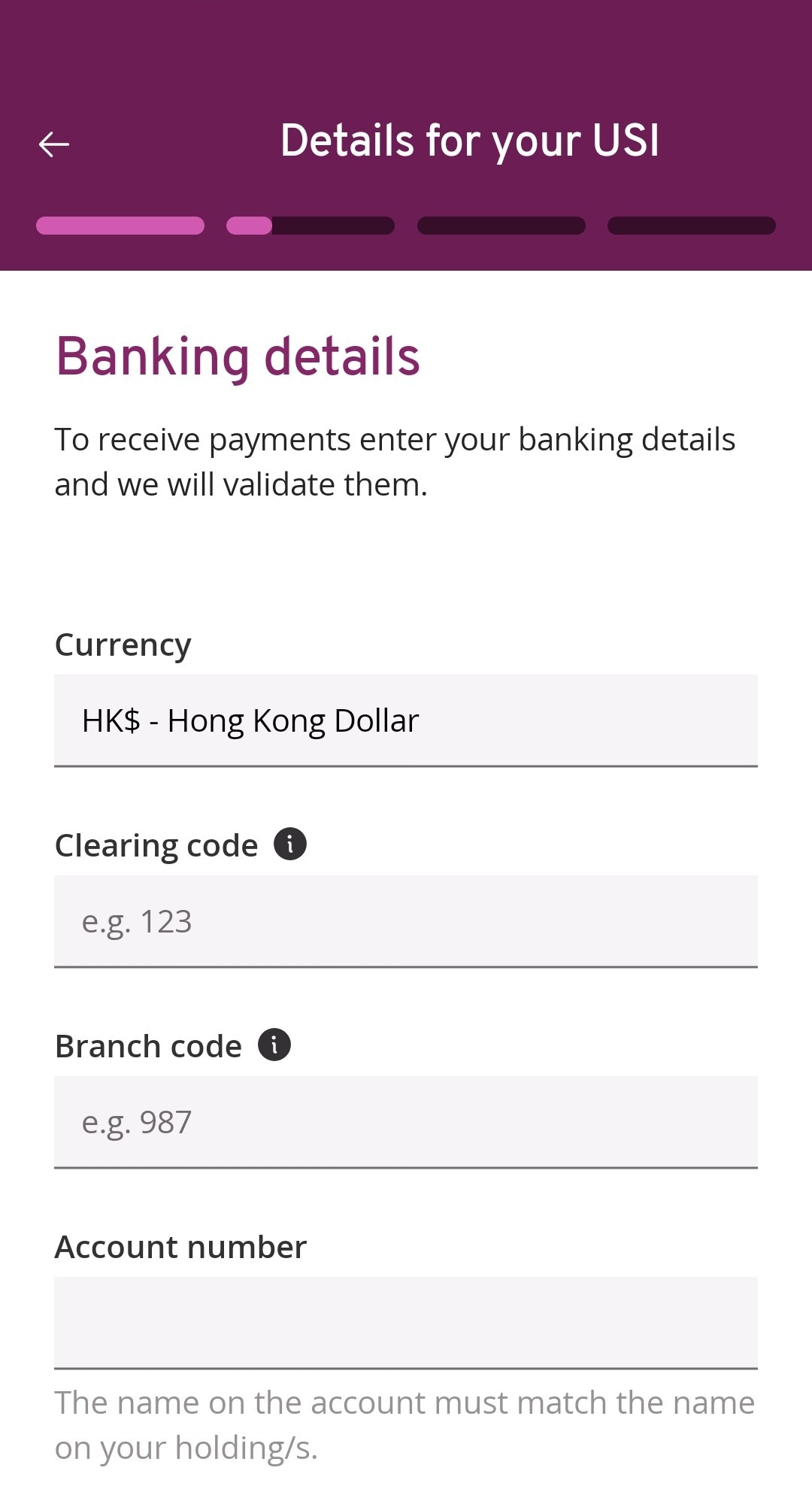
Enter bank account details, then click ‘Next’, and confirm your bank details in the next page.
You can look for your Clearing and Branch code from HKICL website or your communications with banks. For example, if you are using a HSBC Hong Kong account, the Clearing code is 004 and the Branch code is the first 3 digits of your account number.
3. Get verified
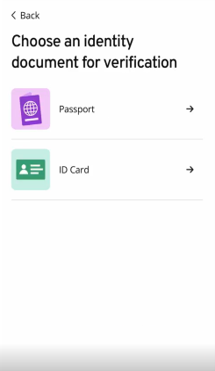
Read through the instructions and go to the identity document for verification screen.
Hong Kong residents must use their Hong Kong Identity Cards. Residents outside of Hong Kong should use their national ID documents.
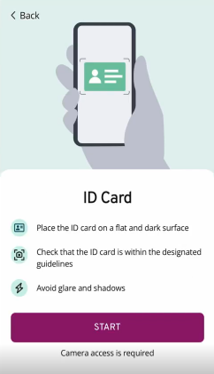
Follow the prompts on the page to complete the shooting.
If you fail to complete this step in multiple attempts, you will need to visit our Investor Service Centre at Hopewell Centre in Wan Chai to complete the verification.
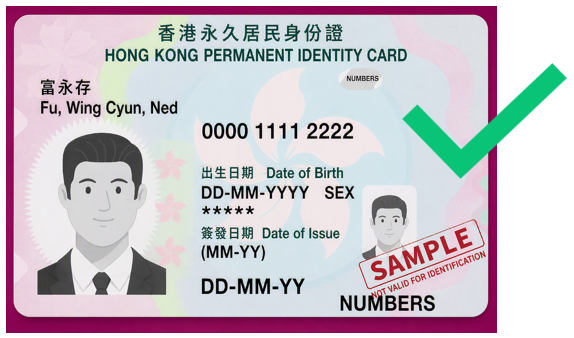
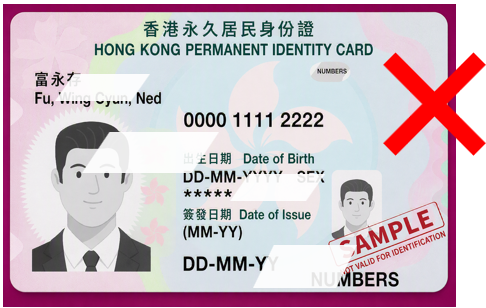
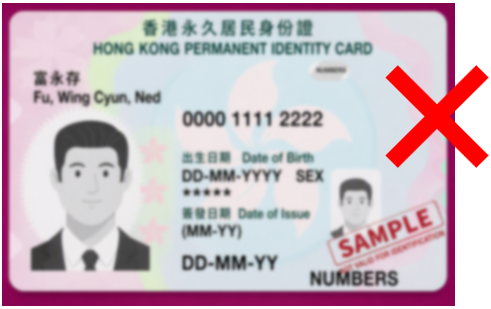
Tips for taking images of your ID card
- Place your ID card on a flat and dark surface
- Hold your camera still when images are being captured
- Retake the photo if you see glare on the images
Acceptable images should show all information clearly.
Images with glare or blurred images will not be accepted.
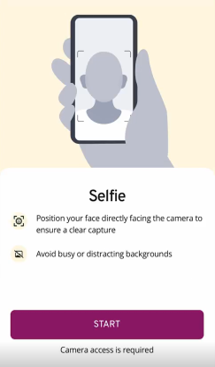
Follow the prompts on the page to complete taking a selfie.
If you fail to complete this step in multiple attempts, you will need to visit our Investor Service Centre at Hopewell Centre in Wan Chai to complete the verification.
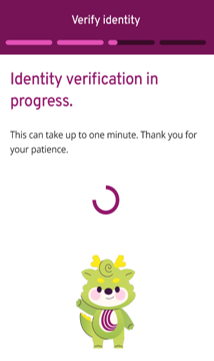
The identity verification process will take up to one minute, please stay on the page.
If your verification fails, please make an appointment to visit us in person.

Check your details carefully before you proceed to get your USI identifier.
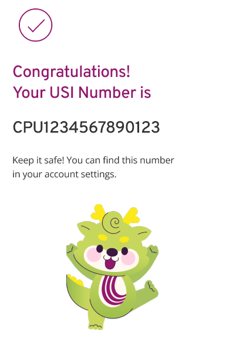
Congratulations! Your USI profile is set up.
4. Connect your holdings
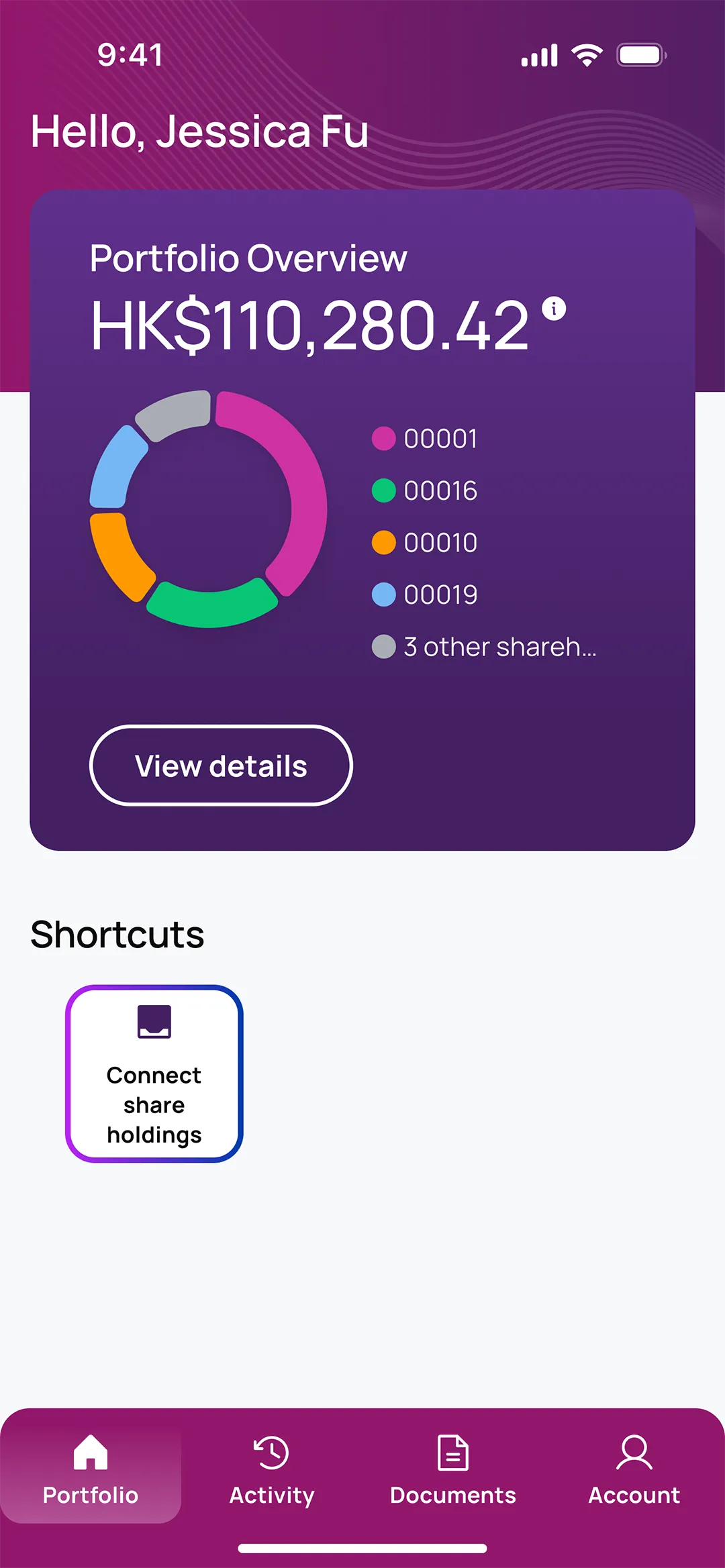
Go to ‘Portfolio’ page and press ‘Connect share holdings’ your shares’ button.
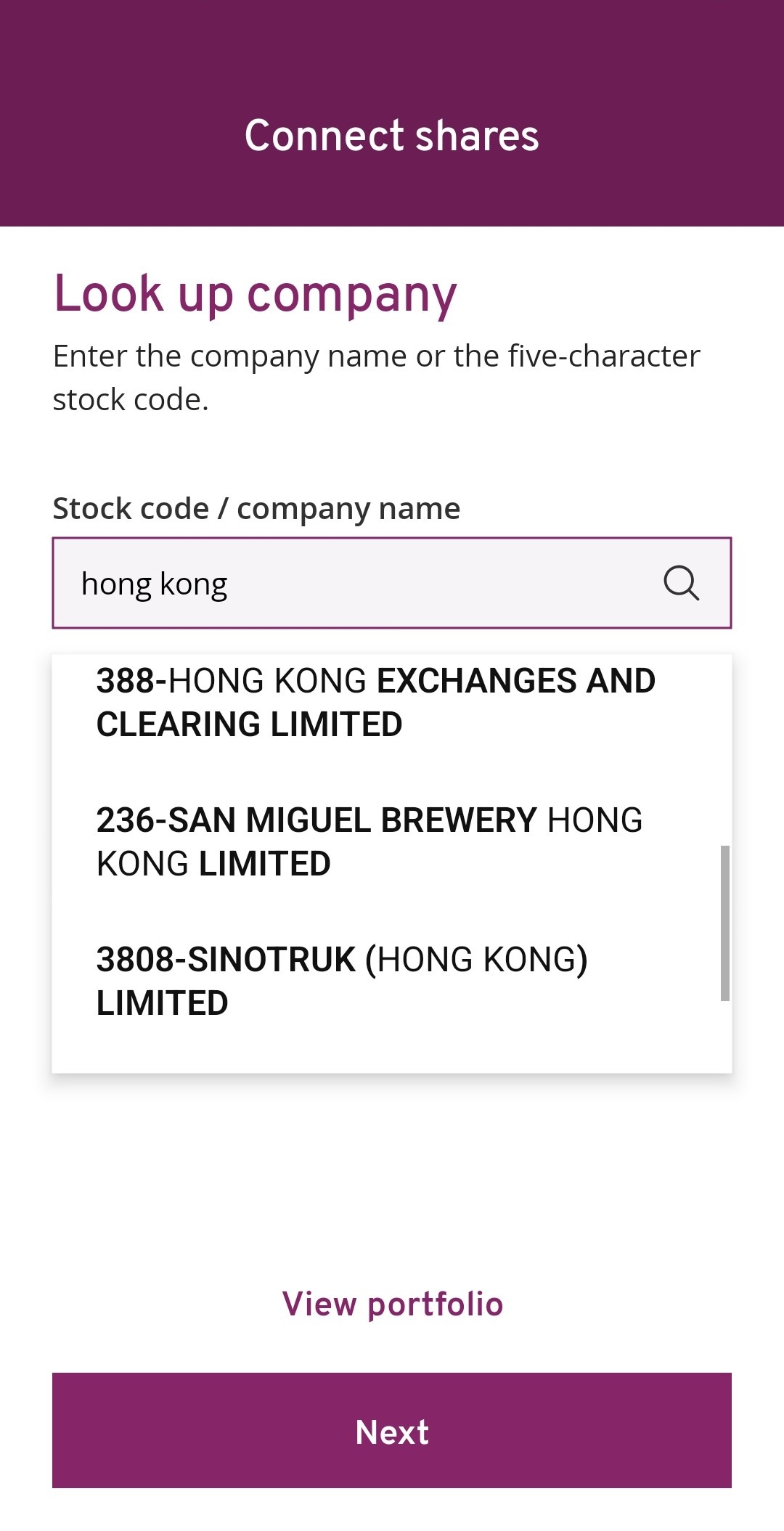
Enter the company name or stock code, then click ‘Next’.
Select the correct company from the search results and press ‘Next’.
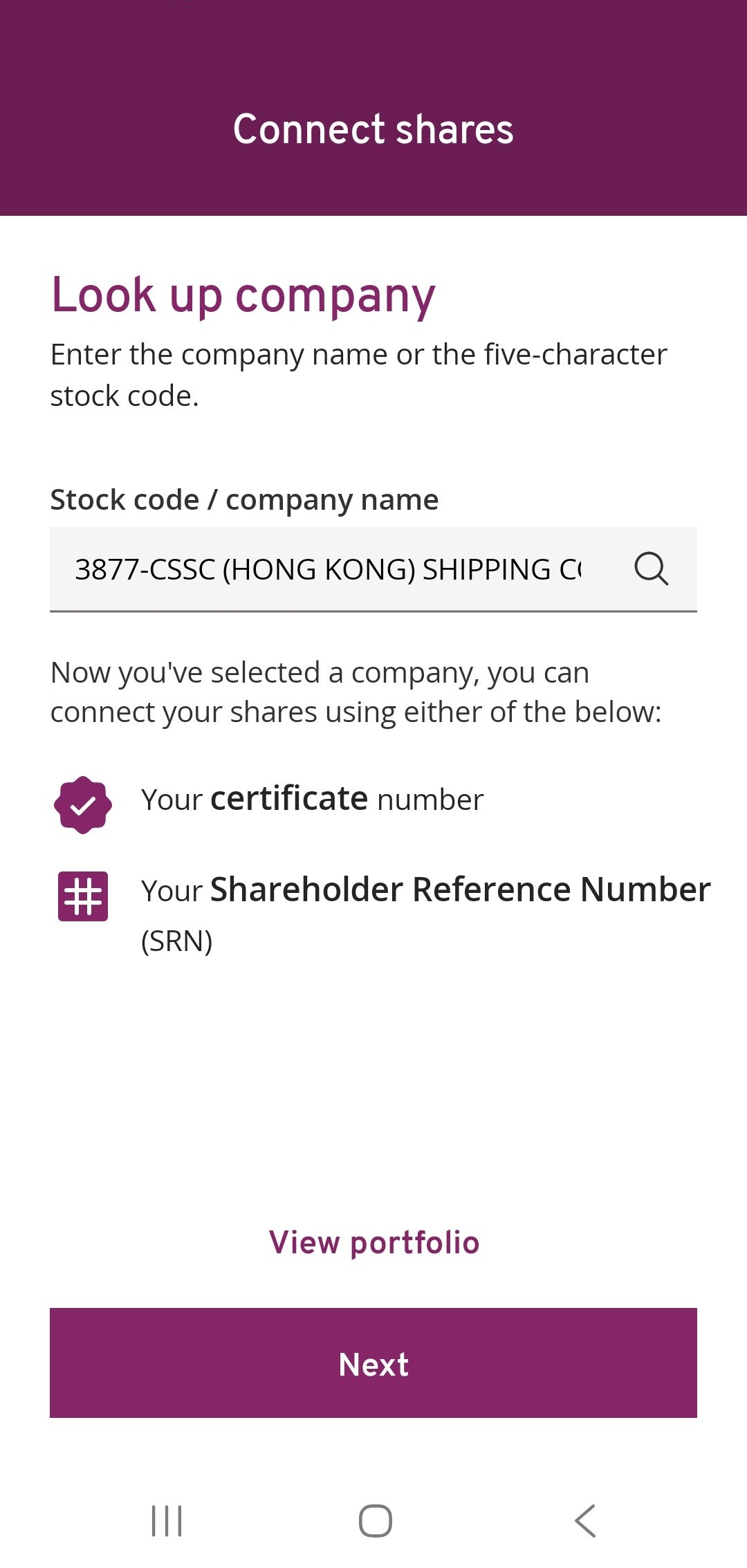
Choose between connecting to your shares using a certificate number of a Shareholder Reference Number (SRN), then click ‘Connect my shares’.
If you have multiple company certificates in the same name, you will only need to provide one certificate number or use an SRN to link all your holdings at once (for each issuer).
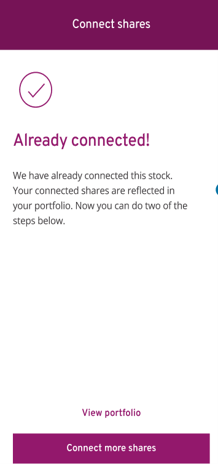
Congratulations! Your shares are now connected to your USI profile. You can view your portfolio by clicking ‘View portfolio’. Click ‘Connect more shares’ to connect the next company.
5. Update your contact details
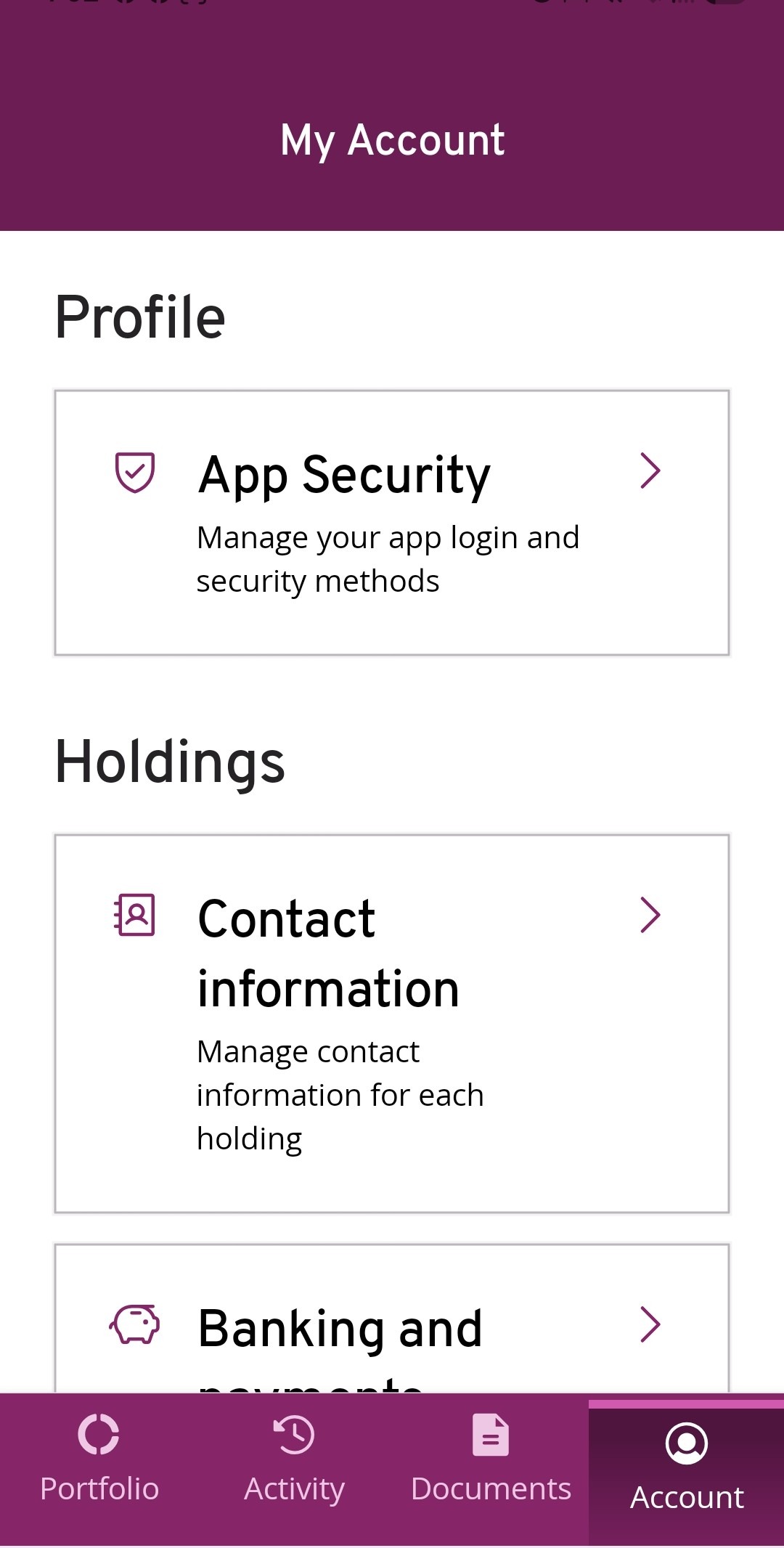
Go to ‘Account’ page , click on ‘Contact information’.
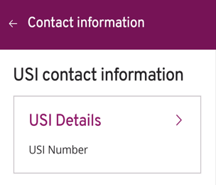
Choose ‘USI Details’.
Updating your details here will apply to your USI profile and all holdings connected.
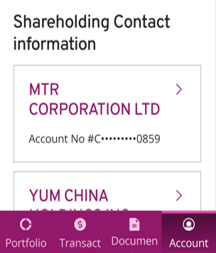
Choose the company in the ‘Shareholding contact information’.
Updating your details here will apply to the specific holding connected only.


